Simplode Suite - Display Utilities
Steam Store Page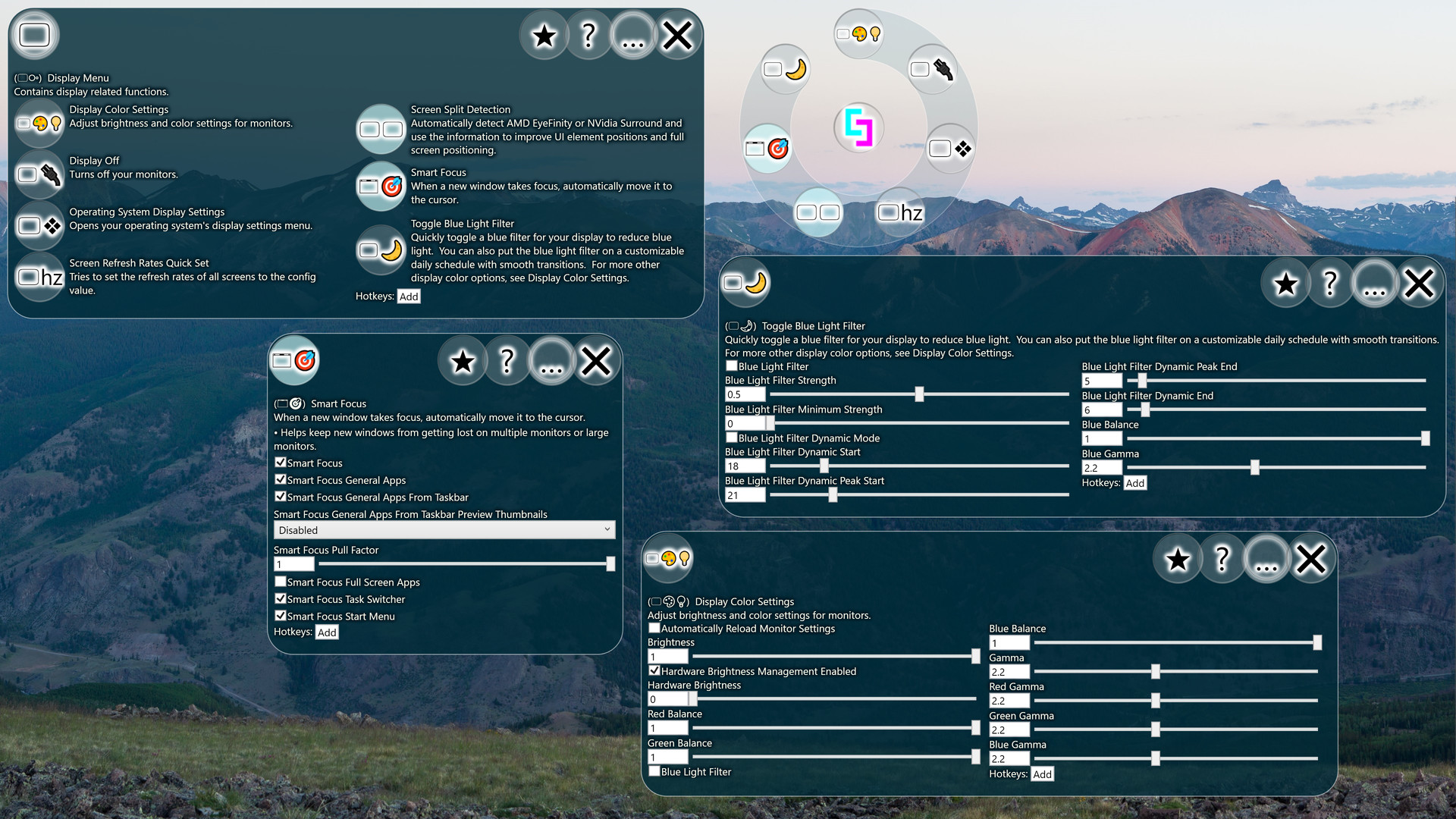
Display Utilities offer various functions to manage your displays and how programs interact with them. Bring newly focused apps to the cursor instead of a random monitor. Adjust blue light on a schedule. Enable Simplode Suite to treat NVIDIA Surround and Eyefinity spanned displays individually.
Launch a coin for Simplode Suite - Display UtilitiesYou type the name and ticker and upload your own image. 80% of its fees are held for the developer.
Fee split for every coin
Claim status
No coin yet. The developer can claim before any coin exists.
The developer connects a wallet, gets a one-time code and posts it in a Steam announcement for Simplode Suite - Display Utilities (or the store page About text). We read Steam and pay out. Claim fees
Payments
Nothing paid to the developer yet.
About This Game
Display Utilities offer various functions to manage your displays and how programs interact with them. Bring newly focused apps to the cursor instead of a random monitor. Adjust blue light on a schedule. Enable Simplode Suite to treat NVIDIA Surround and Eyefinity spanned displays individually.
This product is available natively in English, but it has automated translations for most major languages.
Contents: Display Color Settings (🖵🎨💡), Operating System Display Settings (🖵❖), Screen Split Detection (🖵🖵), Smart Focus (🗔🎯), Screen Refresh Rates Quick Set (🖵hz), Toggle Blue Light Filter (🖵🌙), Display Off (🖵🔌) Display Color Settings (🖵🎨💡)
Adjust brightness and color settings for monitors.
Settings: Automatically Reload Monitor Settings (Default: False)
By default, software color and brightness settings are not reloaded when the computer or monitors restart. This setting will routinely check the settings and reload them as needed.
Brightness (Default: 1)
Hardware Brightness Management Enabled (Default: True)
If enabled, the tool will try to manage your monitor's brightness. Some monitors/drivers may be incompatible and may not work at all or may work incorrectly. This setting primarily exists as a way to disable the feature if it is not working correctly.
Hardware Brightness (Default: 0.5)
Maybe it can change the brightness on all your monitors...
Red Balance (Default: 1)
Green Balance (Default: 1)
Blue Balance (Default: 1)
Blue Light Filter (Default: False)
When enabled, reduces the amount of blue light emitted by your displays.
Gamma (Default: 2.2)
Red Gamma (Default: 2.2)
Green Gamma (Default: 2.2)
Blue Gamma (Default: 2.2)
Operating System Display Settings (🖵❖)
Opens your operating system's display settings menu. Screen Split Detection (🖵🖵)
Automatically detect AMD EyeFinity or NVidia Surround and use the information to improve UI element positions and full screen positioning.
Settings: Screen Split Detection (Default: True)
If enabled, attempts to automatically detect breaks between screens. Nvidia and AMD both produce solutions which allow multiple screens to function as a single screen, so this feature allows this program to be smarter about how it uses screen space in accounting for the screen breaks when they are detected.
Virtual Maximize (Default: True)
When maximizing a single window that is on a virtual split...
From the game's Steam store page.